Mobi PDF・Editor・Scanner・Reader
MobiSystemsBusiness
4.44.05K Reviews
- Version
- 11.16.270809
- Installs
- 10.00M
- Age Rating
- Everyone
Screenshots
Our Review of Mobi PDF・Editor・Scanner・Reader
 Analysis by Appyee
I approach any mobile PDF tool with one basic question: will it help me finish a document task without making me hand over more control than I intended? Mobi PDF・Editor・Scanner・Reader is a business app from MobiSystems that brings reading, scanning, editing, signing, OCR, conversion, annotation, and document combining into one place. That breadth is useful, but it also means I’d take a moment to understand the choices the app presents before using it for private paperwork.
Trust starts with the task, not the feature count
A PDF can be a class handout, a receipt, or a form with personal details. I find it helpful to treat those documents differently: a public report is low stakes, while an identity document or signed agreement deserves more care. The app’s tools can make handling files on a phone more convenient, but convenience alone is not a reason to assume a document is private or protected in every situation.
Its security-related options include password protection for PDFs, which can be useful when I need to restrict access to a file. I would still check the document’s contents and the intended recipient before sharing it. Password protection is a tool for a particular file, not a substitute for thinking through where that file will go or who can open it.
Check the choices around each document
When I scan, convert, sign, or share a file, I pause to check which document is selected and what the next action will do. That small habit matters more than it sounds: combining the wrong pages or sending an unfinished scan can create a problem that no editing tool can fix afterward. I also keep a clean original when making substantial changes, so I can return to it if the edited copy is not what I meant to produce.
The app’s feature range makes it worth exploring the available controls before relying on it for regular work. If a document is confidential, I would use only the actions I understand and review the final file before sending it. For especially sensitive material, a workplace-approved tool may be the better choice, since document handling rules can depend on the organization rather than the app alone.
Getting Started with Ease
The first thing I noticed when opening the app is how clean and intuitive the interface is. You know how some apps throw a million options at you right from the get-go? Not this one. It’s straightforward, making it super easy to navigate even if you’re not a tech wizard.
Downloading the app was a breeze from both the Play Store and App Store. Once installed, it guides you through a quick setup. Within minutes, I was ready to dive into the world of PDFs. It’s free to download, rated for Everyone, and has been around since August 16, 2013. Its current version is 11.12.270273, and it requires Android 8.0 or later. The app has a 4.4 average from around 169,000 ratings, with over 10 million installs, which gives a new user a sense of how widely it is used without telling them whether it fits their own workflow.
Editing Like a Pro
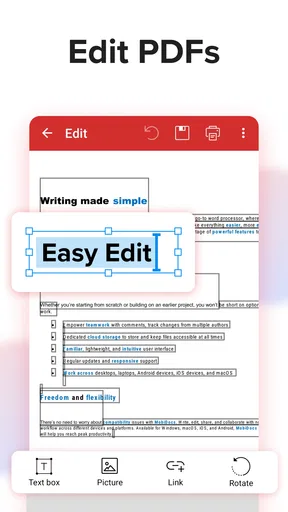
One of the standout features for me is the editing capability. You can actually edit text within your PDFs, which is a lifesaver for those last-minute changes before a meeting or class. The text editing is smooth, and I didn’t experience any lag. It’s almost like having a mini desktop editor in your pocket.
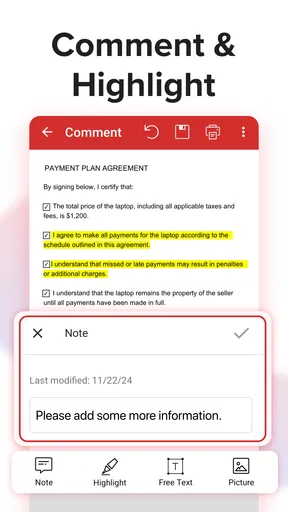
There’s also a nifty annotation tool. I found myself using it to highlight important sections and jot down notes. Whether you’re a student or a professional, these tools can really enhance productivity.
In practice, I’d use text editing for a small correction or a detail that needs fixing, rather than treating a phone screen as the right place to rewrite a long report. A useful routine is to make the change, then inspect the surrounding lines and page breaks; even a small edit can affect how a document reads. For a larger rewrite, I’d convert the file to an editable document, make the broader changes there, and check the resulting PDF before sharing it.
Annotations are a different kind of edit: they let me mark up a document without needing to rewrite its main text. For a meeting, I might highlight a decision and add a short note beside it, then review those marks before the discussion. If someone else needs a clean copy, I’d keep a separate annotated version rather than assuming the markup will be appropriate for every reader.
Scanner That Packs a Punch
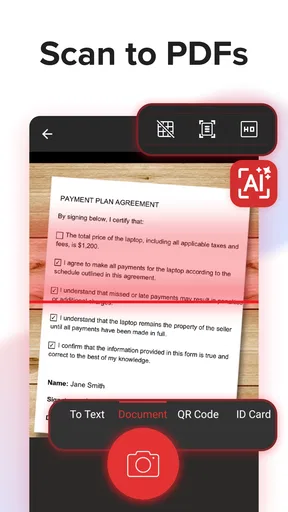
I was skeptical about the scanner feature at first. I mean, how good can a phone scanner really be? Turns out, pretty darn good. Using the camera, you can scan documents with surprising clarity. It’s perfect for when you need to digitize receipts or notes on the fly.
The app automatically crops and enhances the scans, so they look professional. I tested it on a few handwritten notes, and the results were impressive. It’s like having a portable scanner without the bulk.
A practical tip is to place the page on a contrasting, uncluttered surface and keep the phone parallel to it. That gives the crop and enhancement less visual clutter to contend with. I also check the edges and small print before I move on: an attractive preview is not proof that every line is legible, especially on a faded receipt or a page photographed under uneven light.
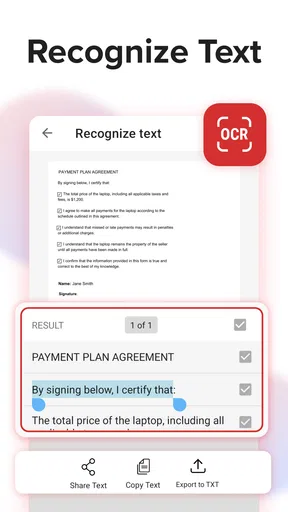
OCR can be useful when I want scanned text to become searchable or easier to reuse, but I treat its output as a draft rather than a guaranteed transcript. Names, totals, and handwritten details deserve a careful comparison against the original. For a receipt, I would verify the amount before entering it into an expense record; for a signed form, I would make sure the scan preserves the signature and all page edges.
For an ordinary day, imagine I receive a paper form just before leaving for an appointment. I can scan it on my phone, check that every page is readable, and save a copy to send later rather than carrying the paper around. If the form includes private information, I would also consider whether scanning and sharing it on my personal device is suitable for that task. The convenience is real, but the decision about the document is still mine.
Seamless Reading Experience
Reading PDFs on my phone used to give me a headache—tiny text, awkward zooming, you know the drill. But the reading experience here is smooth and customizable. You can adjust the view, zoom, and navigate through pages effortlessly.
The app also supports a range of PDF types, so whether you’re reading a textbook or a report, it handles them all with ease. I even tried it with some graphic-heavy PDFs, and it didn’t break a sweat.
For long documents, I find it helpful to use search and navigation deliberately rather than repeatedly pinching and dragging around the page. When reviewing a contract or a course pack, I can locate a term, inspect the surrounding passage, and then add an annotation if I need to return to it. On a small screen, that is often more practical than trying to remember where a detail appeared.
There is a trade-off, though: a phone is convenient for checking a few pages, but it is not always the best screen for comparing tables, diagrams, or multiple pages side by side. I would happily read a short report during a commute, while choosing a tablet or computer for careful proofreading or a document that depends on fine visual detail.
Feature Highlights that Shine
There’s more to love about this app beyond the basics. It supports cloud integration, allowing you to sync your documents across devices. I found this feature particularly useful when switching between my phone and tablet.
Another cool feature is the password protection for your PDFs. If you’re handling sensitive information, this adds an extra layer of security. You can also merge and split PDFs, which comes in handy more often than you might think.
Merging is especially handy when I need to turn separate pages into one submission, such as combining a scanned form with supporting pages. Before doing that, I would check the order and remove any page that should not be included. Splitting has the opposite benefit: it can make a large file easier to share or separate a section for reference, but I would keep track of which pages belong in the final version so a required attachment does not get left behind.
Cloud syncing can save time when I move between devices, but I would make a conscious choice about which files I place in a synced location. A convenient workflow is to keep working copies accessible across devices and avoid syncing a sensitive document unless that fits my needs. The app’s in-app purchases range from $4.99 to $149.99 per item, so I would check the current purchase options in the app before committing; the free download is an easy way to see whether the basic workflow suits me first.
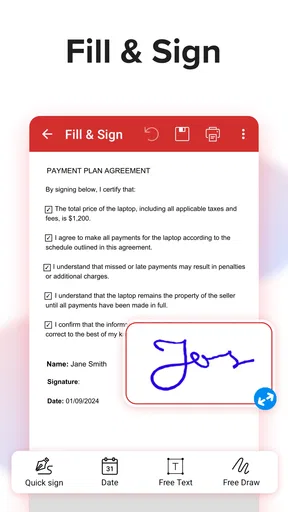
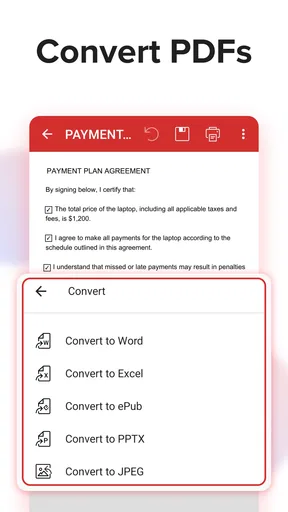
Signing and converting can also be useful when a document arrives in the wrong format or needs a quick response. I would check a converted Word file for layout changes before editing it, then review the finished PDF after converting it back. When signing, I would inspect the final page and make sure the signature appears where intended. Those checks are simple, but they help prevent a rushed phone workflow from creating a document that looks unfinished.
Compared with using a separate scanner, reader, and desktop editor, the app’s main advantage is having several PDF tasks together on a mobile device. A dedicated desktop editor is usually the better fit for extensive layout changes, while a basic reader may be enough if I only open PDFs occasionally. I see this app as most useful in the middle: for people who regularly need to inspect, mark up, scan, or reorganize documents while away from a computer.
Who will get the most from it
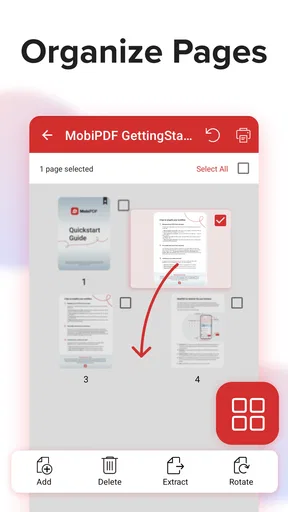
I’d recommend trying it if your routine involves a mix of paperwork: students marking up readings, people reviewing forms on the move, or small-business owners keeping receipts and sending signed documents. Having scanning, OCR, annotation, and page management in one app can reduce the number of steps between receiving a paper and producing a usable digital copy.
I would skip it if I rarely handle PDFs and only need to read one now and then; a simpler reader may be less distracting. It is also not my first choice for long, precise document production, complicated page design, or work governed by strict organizational handling rules. In those cases, a desktop editor or an approved business system gives a more suitable environment than trying to do everything on a phone.
For someone deciding whether the free download is enough, I’d start with a real but non-sensitive task: read a PDF, add a couple of annotations, or scan a receipt and inspect the result. That reveals whether the interface and workflow feel comfortable before considering paid options. If I later need more, I would compare the purchase choices with the specific features I actually use instead of paying for a broad bundle on the assumption that I might need it someday.
Final Thoughts
Overall, the app combines a broad set of document tools with a user-friendly interface. Its biggest strength for me is practical flexibility: I can move from reading to marking up or scanning without changing apps. That does not make every task ideal on a phone, and I still take extra care with OCR, edits, and sensitive files, but the tools can make everyday PDF chores much less cumbersome.
If you’re tired of clunky PDF management on your mobile devices, give this app a shot. You might just find it becomes an indispensable tool in your digital toolkit. I’d go in with a clear idea of the work I want it to do, check each document before sharing, and choose another tool when the task calls for more control or a larger screen.
Verdict
Strengths of Mobi PDF・Editor・Scanner・Reader
- User-friendly interface with intuitive navigation.
- Supports multiple file formats for diverse needs.
- Quick and efficient PDF scanning capabilities.
- Offline access to documents enhances productivity.
- Secure file sharing with encryption options.
Limitations of Mobi PDF・Editor・Scanner・Reader
- Limited advanced editing tools available.
- Occasional lag when handling large files.
- Ads in the free version can be intrusive.
- Lacks integration with some cloud services.
- Premium features require a subscription.
Other Releases by MobiSystems
View All
File Commander Manager & Vault
Business4.2

MobiOffice: Word, Sheets, PDF
Business4.4

Talk & Translate AI Translator
Books & Reference4.5

OfficeSuite Pro + PDF
Business4.5
Similar Picks in This Category
View All
LinkedIn: Community & Network
LinkedIn3.8

Zoom Workplace
zoom.com4.1

Microsoft Teams
Microsoft Corporation4.6

Meta Business Suite
Meta Platforms, Inc.4.6

Webex Meetings
Cisco Systems, Inc.4.5

TeamViewer Remote Control
TeamViewer4.4
Frequently Asked Questions
What features does Mobi PDF・Editor・Scanner・Reader offer?
Mobi PDF・Editor・Scanner・Reader provides a comprehensive suite of tools for managing PDF documents. It allows users to edit text and images, annotate files, convert documents to various formats, and scan paper documents into PDFs using the device's camera. Additionally, it includes a robust reader with bookmarking and search functionalities.
Is Mobi PDF・Editor・Scanner・Reader free to use?
Mobi PDF offers both free and premium versions. The free version includes basic features like reading and scanning PDFs, while the premium version unlocks advanced editing and conversion tools. Users can choose a subscription plan to access these additional features, which may also include cloud storage and collaboration options.
How user-friendly is Mobi PDF・Editor・Scanner・Reader for beginners?
The app is designed with an intuitive interface, making it accessible for users at all levels. Beginners will appreciate the straightforward navigation and helpful tutorials available within the app. Advanced users can benefit from customizable settings and more complex tools, ensuring it meets diverse needs effectively.
Can Mobi PDF・Editor・Scanner・Reader be used offline?
Yes, Mobi PDF allows users to access and edit documents offline. This is particularly useful for those who need to work on documents while traveling or in areas with limited internet connectivity. However, some features like cloud backup and sharing require an internet connection.
Does Mobi PDF・Editor・Scanner・Reader support collaboration?
The app supports collaboration through its premium subscription. Users can share documents with others, allow for comments and annotations, and track changes in real time. This makes it a great tool for teams needing to work together on projects, providing seamless communication and document management.
